

A quick look at the game
Snowball Fight sends you into a snowy 3D arena against computer-controlled opponents. Move between cabins and ice barriers, aim your throws and dodge incoming snowballs. Collect double throw and a protective shield while working through 72 challenges. You can play on a computer or mobile phone, with controls suited to each screen. This is a solo browser game; the opponents are bots.
Land hits before the clock runs out
Your task is easy to understand: reach the required number of hits before time expires, while keeping some of your snow shield intact. Every successful hit counts, even when the opponent stays standing. That distinction matters when several targets are moving around you. You do not need to finish off one particular bot before another throw can help your score.
The hit target increases as you advance. Early rounds give you room to learn; later ones ask for more accurate throws and better use of the available time. Watch the counter rather than guessing how close you are to finishing. When your shield runs out, or the timer reaches zero before you meet the target, you can try the challenge again.
Read the arena and find an opening
Snow-covered cabins, trees and low ice barriers break up the circular playing area. An obstacle can stop a snowball, but it can also block your own shot. Before throwing, check whether there is a clear line between your character and the opponent. A small step sideways may be more useful than another volley into the same barrier.
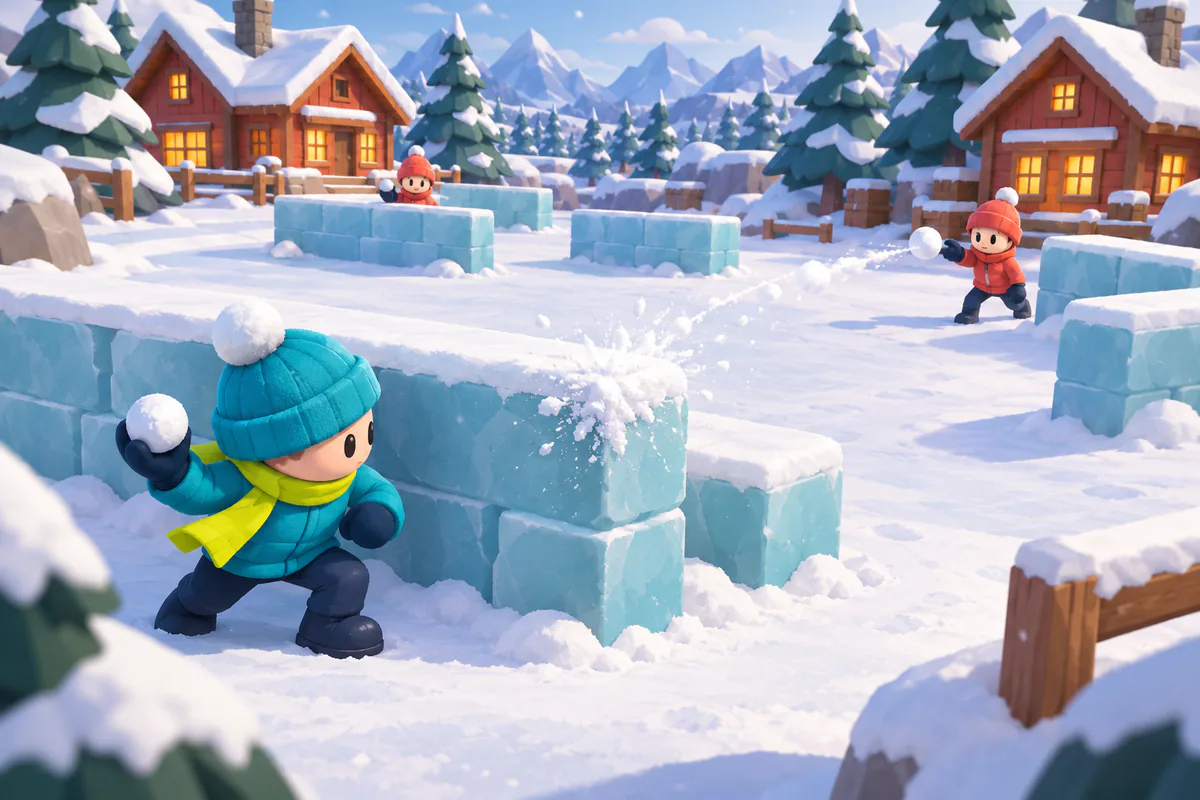
Computer controls: movement and aiming together
Use WASD or the arrow keys to walk. Hold the Space bar to keep throwing snowballs. While you move with the keyboard, your throwing direction follows the directional keys. You can change direction during a volley, so an opponent crossing the arena does not force you to stop and start the whole action again.
Keyboard aiming includes assistance for visible opponents near your chosen direction, provided there is a clear throwing line. This helps with diagonal targets, although it does not find enemies behind cabins. For more precise control, hold the left mouse button and point where you want to throw. Mouse aiming lets you move one way while throwing another. Shift triggers a dash; Escape pauses the round.
Mobile controls without a crowded screen
On a phone, drag your finger to move and release it to stop. A short tap points your character towards that spot and throws a snowball. Start with a few deliberate taps while you learn how far opponents move between your aim and the ball reaching them. Tapping directly on a moving target is not always the best choice; a little space ahead can give you a better chance.
You can also move with one finger while holding and moving a second finger to aim and throw continuously. The dash button sits near the bottom right. There is no separate throw button covering the middle of the arena. The compact information display leaves more room to watch the fight, though portrait screens naturally show less of the surrounding action than a wide desktop view.
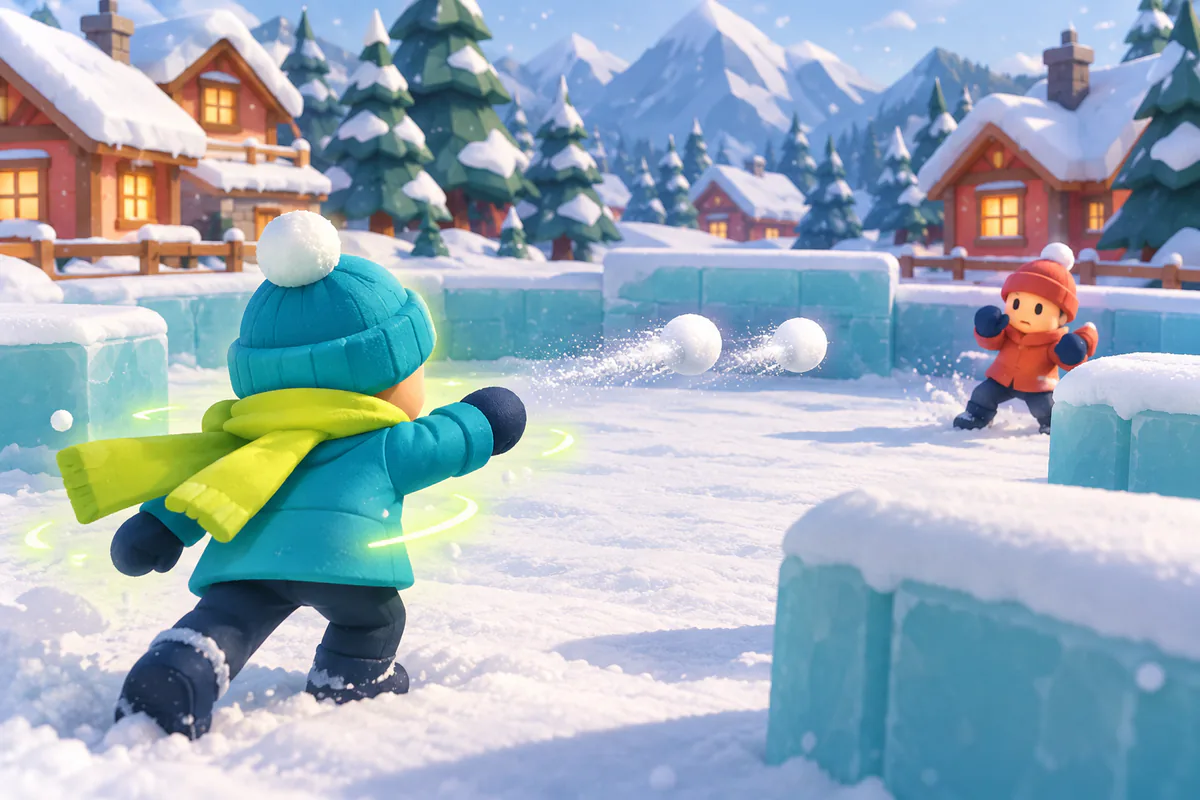
Double throw: two snowballs, one action
The green pickup grants double throw for 12 seconds. Each throw launches two snowballs side by side. They travel in parallel, so this is useful when your angle is already good; it does not automatically spread shots across the whole arena. Both balls can hit, and both successful impacts contribute to the target.
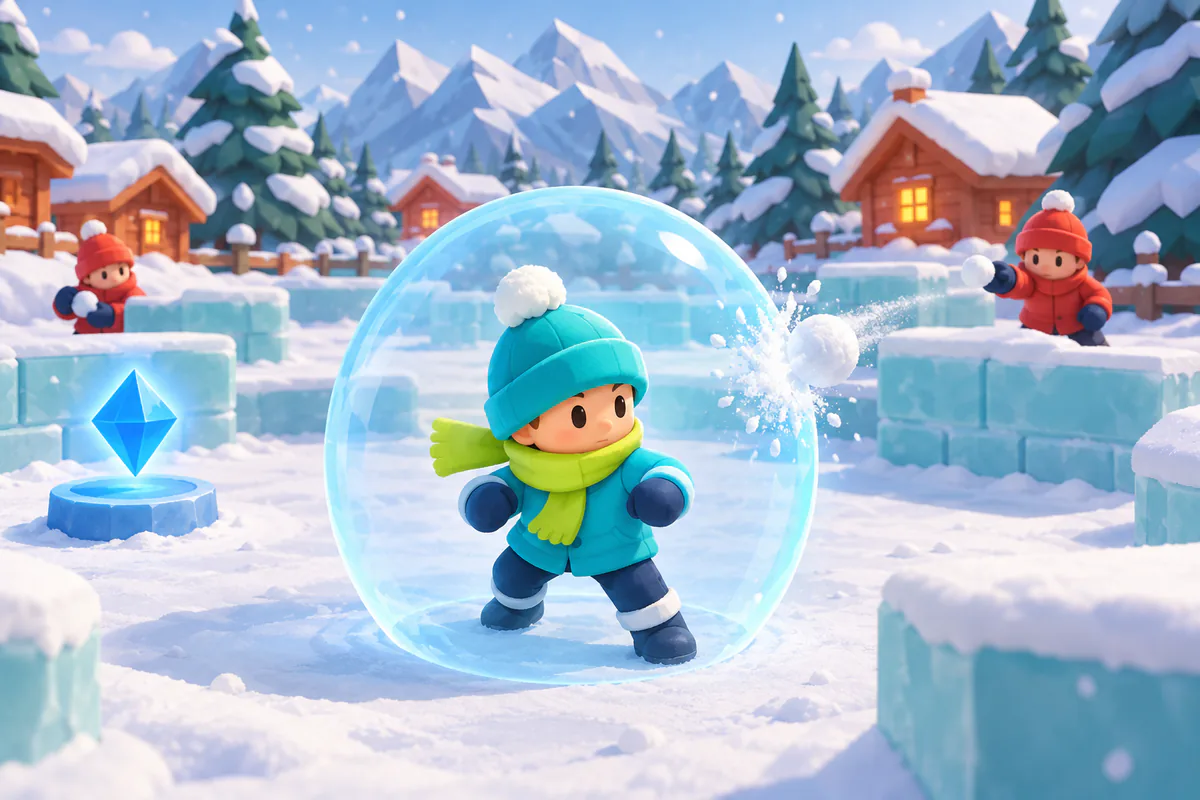
A blue shield buys breathing room
The blue pickup activates a protective shield for 14 seconds, reducing incoming damage by 60%. It does not make you invulnerable. You still need to move, especially when several nearby bots have a clear shot. Double throw and the protective shield can be active together, allowing you to use a brief opening more confidently.
Seventy-two challenges, six winter moods
The 72 levels are arranged in six groups of twelve. Their changing colours give the arena different winter moods. The underlying layout remains the same; these are not seventy-two separate maps. Learning where the cabins, barriers and open passages sit therefore pays off as the difficulty rises.
Later challenges bring a higher hit requirement and more demanding opponents. Bots become faster, their numbers increase up to a limit, and they try to move around the scenery instead of simply standing still. Keep checking both your target and the space beside your character. A good route should leave somewhere to dodge, not merely take you closer to the next opponent.
Watch an opponent disappear into the snow
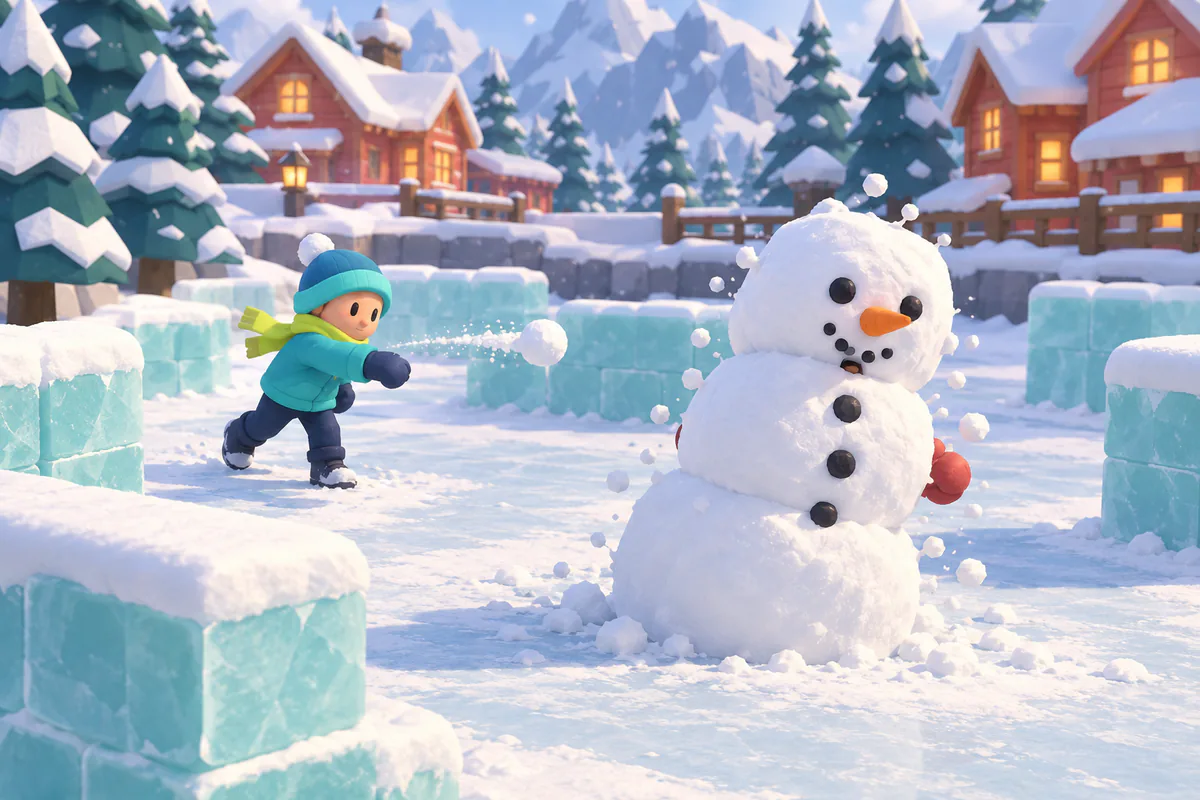
Do not confuse that final animation with the scoring rule: earlier hits have already counted. If you are close to the target, aim for the clearest available shot instead of chasing one snow-covered bot around a building. Keep moving between throws, save your dash for a useful escape and check the timer whenever you have a moment of cover.
Frequently asked questions
Is Snowball Fight a multiplayer game?
No. This version is a single-player game against bots. The opponents are controlled by the game, not by other people connected to a server. You can practise routes and timing without needing a lobby or a second player.
Do I need to download an app?
Play Snowball Fight free online, with no account or sign-up, in your browser on desktop or mobile. No separate app is needed.
How do I hit opponents standing diagonally?
Combine two movement keys for a diagonal direction and hold Space. The aiming assistance can adjust towards a visible opponent nearby. For a freely chosen angle, use the mouse on a computer or point with a second finger on mobile.
Are my unlocked levels saved?
Progress is saved locally in your browser. Returning with the same browser and retained site data lets you continue from your unlocked challenges. Clearing that data, changing devices or using another browser can leave you without that progress; there is no cloud synchronisation.
Can I pause with the keyboard?
Press Escape during play. In the pause window, Space resumes the round. Space also activates the main action in the result window or starts the selected available level. Use Tab to move between buttons when choosing another option.
How do sound and full screen work?
Sound is enabled by default and starts after your interaction with the game. Use the sound switch to mute the electronic beat and effects. The upper-right full-screen button asks your browser to expand the game; support depends on the browser and device.
Try a different challenge
PONG tests your paddle timing. STARTRAIL calls for quick reactions, while PRISM BLOCKS lets you find the right places for your blocks.